Databricks
Querying Overview
Databricks is a SQL oriented warehouse which includes extensions to handle JSON strings. Here are several useful querying links.
For general querying see https://docs.databricks.com/en/query/index.html
For transforming data see https://docs.databricks.com/en/transform/index.html
SQL Queries
Databricks uses SQL as its query language. The Databricks “SQL Language Reference” can be found at the following link.
https://docs.databricks.com/en/sql/language-manual/index.html
Databricks extends SQL a bit with various functions. An example are geospatial ones described in the following link.
https://docs.databricks.com/en/sql/language-manual/sql-ref-h3-geospatial-functions.html#h3-geospatial-functions
Note - When defining Databricks queries in Qarbine use ‘//’ as the comment line lead-in and not the Databrick’s ‘--’ lead-in.
Handling JSON Data
Overview
As a SQL oriented data warehouse any JSON data is generally returned in its string form. For JSON with even just a few fields, this can be a burden for analysis tasks. Databricks does have SQL functions to extract individual values, but this immediately adds a column to the result set as well. As the JSON structure starts to even get mildly complex or even nested, the use of these functions greatly impacts the answer set shape and size.
The tradeoff to be made is to allow Databricks to keep JSON in its string form and let Qarbine morph it into JSON objects and then propagate the answer set along to templates in its much richer format. End users, analysts, and developers then do not have to write code to turn the strings into real JSON objects. Qarbine does it for them as directed. This is described below.
Databricks has several JSON oriented functions described at
https://docs.databricks.com/en/sql/language-manual/sql-ref-json-path-expression.html
There is an example of deeply nest JSON data at
https://docs.databricks.com/en/semi-structured/json.html
The example data can be inserted into a table within the sample SQL warehouse or one of your own. The query to retrieve the contents is
SELECT raw:store FROM store_data
The result is a single row that has a single column.

The single row has a store column containing a raw string. It is shown below.
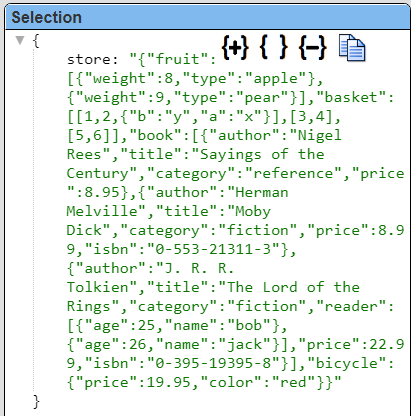
The link above uses this data to discuss various JSON querying techniques. Refer to the article and the links for more details on the querying aspects.
Answer Set Considerations
Qarbine can be directed to convert the answer set “store” string into a real JSON object which is much easier to interact with and analyze in many cases. This is done using ‘pragmas” which are discussed in the general Data Source Designer documentation.
You can mix regular Databricks JSON functions with Qarbine pragmas to achieve various results. You specify nested fields through dot notation or using brackets. When you use brackets, columns are matched case sensitively.
You can also extract values from arrays. You index elements in arrays with brackets. Indices are 0-based. You can use an asterisk (*) followed by dot or bracket notation to extract subfields from all elements in an array.
Using Pragmas for JSON Data
Below are a few of the pragmas from that documentation to consider using with the Databricks JSON string data.
| Pragma Keyword | Description |
|---|---|
| convertToObject | Provide a CSV list of fields to convert strings to JSON objects via JSON.parse(someString). This is done in-place. |
| convertToObjects | Provide a CSV list of ARRAY fields to convert their element strings to JSON objects via JSON.parse(someString). This is done in-place. |
| deleteFields | Provide a CSV list of fields to delete. The arguments may have field paths of up to 2 levels. The first level can be a document or an array of documents. The deleting is done in-place. This is convenient when the result row/document has many fields and you want all just a few of them. Rather than explicitly list the 20 say fields of the 23, just ‘delete’ those 3 from the answer set. |
| pullFieldsUp | Provide a CSV list of object fields to pull their contents up to the first level. The original field is deleted. This can be useful when there are many inner fields that can be part of the first level. Instead of several template formulas like #container.first and #container.last you can simply use #first and #last via the line #pragma pullFieldsUp container |
The pragmas are generally placed above the Databricks SQL query. The first pragma is usually the line to convert any JSON strings into JSON objects.
For example, this query specification
#pragma convertToObject store
SELECT raw:store FROM store_data
returns the following result.

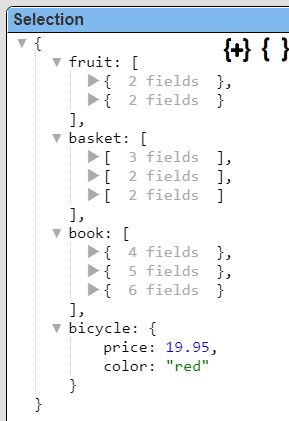
It is still a single row with only 1 column, but selecting that row shows its new, converted to JSON object form.

The object clearly has 3 embedded arrays (fruit, basket, and book) and an embedded bicycle object as well. In this form it becomes very easy to define a template to process the JSON object arrays and embedded documents. The template formula using field path notation would be “#store.fruit” to access the fruit array.
We can simplify access even more by “pulling up the inner fields of the “store” field. This is illustrated in the query specification below.
#pragma convertToObject store
#pragma pullFieldsUp store
SELECT raw:store FROM store_data
Note that order is important and pragmas are run in top down order. The single row now has 4 fields as shown below.

Selected the first row shows the following details.
Vector Queries
Overview
Databricks supports vector searches as well. For details see this link, https://docs.databricks.com/en/generative-ai/vector-search.html
Supporting Functions
The likely most important SQL function is “vector_search()”. For details see the link at https://docs.databricks.com/en/sql/language-manual/functions/vector_search.html
Its signature os
vector_search(index, query, num_results)
| Argument | Description |
|---|---|
| index | A STRING constant, the fully qualified name of an existing vector search index in the same workspace for invocations. The definer must have “Select” permission on the index |
| query | A STRING expression, the string to search for in the index.Alternatively it may be an embedding array, |
| num_results | (optional): An integer constant, the max number of records to return. Defaults to 10. |
Here is an example of searching over an index of product SKUs to find similar products based on name retrieving at most 2 items.
SELECT *
FROM VECTOR_SEARCH(index => "main.db.my_index", query => "iphone", num_results => 2)
Much more complete vector searches can be done. See some example at this link https://docs.databricks.com/en/sql/language-manual/functions/vector_search.html#examples.
You can specify filters for the query as well. This is described at this link https://docs.databricks.com/en/generative-ai/create-query-vector-search.html#use-filters-on-queries
Simple Example
The vector search functionality may still be in public preview. Here is an example for the case where the embedding is provided to the Databricks query and not determined by Databricks at query time.
Create the table.
CREATE TABLE products (
  product_id INT,
  product_name STRING,
  embedding ARRAY<FLOAT>
);
Insert some data.
INSERT INTO products VALUES
(1, 'Product A', ARRAY(0.1, 0.2, 0.3)),
(2, 'Product B', ARRAY(0.4, 0.5, 0.6)),
(3, 'Product C', ARRAY(0.7, 0.8, 0.9));
Run a simple query
SELECT product_id, product_name,
vector_search(embedding, ARRAY(0.15, 0.25, 0.35)) AS similarity
FROM products
ORDER BY similarity DESC
LIMIT 5
Using Embedding Variables
In practice the embedding size would be much larger (512, 768, or perhaps 1536). The model used to calculate the embedding value stored in the database must be compatible with the model used to determine the embedding used by the query.
If the embedding value was stored in a runtime variable it can be inserted into the query via
SELECT product_id, product_name,
vector_search(embedding, ARRAY(@myEmbedding)) AS similarity
FROM products
ORDER BY similarity DESC
LIMIT 5
Using Dynamic Embedding from an AI Assistant
To have Qarbine dynamically determine the embedding using one of its configured AI Assistants the query may look like
SELECT product_id, product_name,
vector_search(embedding, ARRAY( [! embeddings(“some phrase”, “myAiAlias”) !] )) AS similarity
FROM products
ORDER BY similarity DESC
LIMIT 5
The argument to embeddings may be a variable containing the string to obtain the similarity embedding for as well.
Troubleshooting
If there is a query which returns unexpected results then first cross reference the results using the standard online Databricks querying tools.
In the Data Source Designer pressing Alt and clicking the run image returns the effective query that would be sent to Databricks. This query has had all variables and macro functions evaluated by this point.